 Xingxin on Bug
 Intro
I am using CRISP - Compliant ROS2 Controllers for Learning-Based Manipulation Policies to collect data via teleoperation between my Franka Research 3, a realtime kernel powered mini PC, and an NVIDIA RTX 5090 workstation. As a novice to ROS, this was my first time wrestling with RMW (ROS Middleware).
If you are trying to connect multiple machines, I hope this guide keeps you from getting lost in the networking maze! Today, I will share the basic concepts, key takeaways, and the traps I fell into so you can avoid them.
Ready-to-go RepoI have already set up both RMWs in these branches:
What is an RMW?
RMW stands for ROS Middleware. It is the underlying layer that handles all network communication between your ROS nodes.
If you come from a web development background like next.js or astro, you might be familiar with configuring runtimes:
export const config = {
runtime: 'nodejs', // optional: use 'nodejs' or omit for 'edge' (default)
};
export default function middleware(request: Request) {
console.log('Request to:', request.url);
return new Response('Logging request URL from Middleware');
}Just like the runtime of a Next.js middleware can be swapped (node.js vs. edge runtime), the implementation of your ROS middleware can be swapped out without changing your robot’s code. The two most common options right now are:
- CycloneDDS: Robust, standard, and often the default.
- Zenoh: Lightweight, rapidly growing, and great for tricky networks.
Why do we need RMW?
Let’s look at a robot learning example. Suppose you have two machines:
- NVIDIA RTX 5090 Workstation (for heavy policy evaluation)
- Mini PC with a Real-time Kernel (no heavy GPU, but required to run libfranka: C++ library for Franka Robotics research robots to control the robot)
[Policy Node (Machine 1)] ---(Topic: /robot_commands)---> [Controller Node (Machine 2)]
Because libfranka requires a real-time kernel, Machine 1 cannot control the Franka robot directly. We evaluate the AI policy on Machine 1 for its heavy reasoning power, then send the commands over a topic to the controller on Machine 2. Since there are two separate machines involved over a network, we need an RMW to handle the message delivery.
Cyclone: multicast
Cyclone defaults to multicast. Think of it like shouting in a room: anyone else in the same room (on the same network) listening for that topic will hear your message.
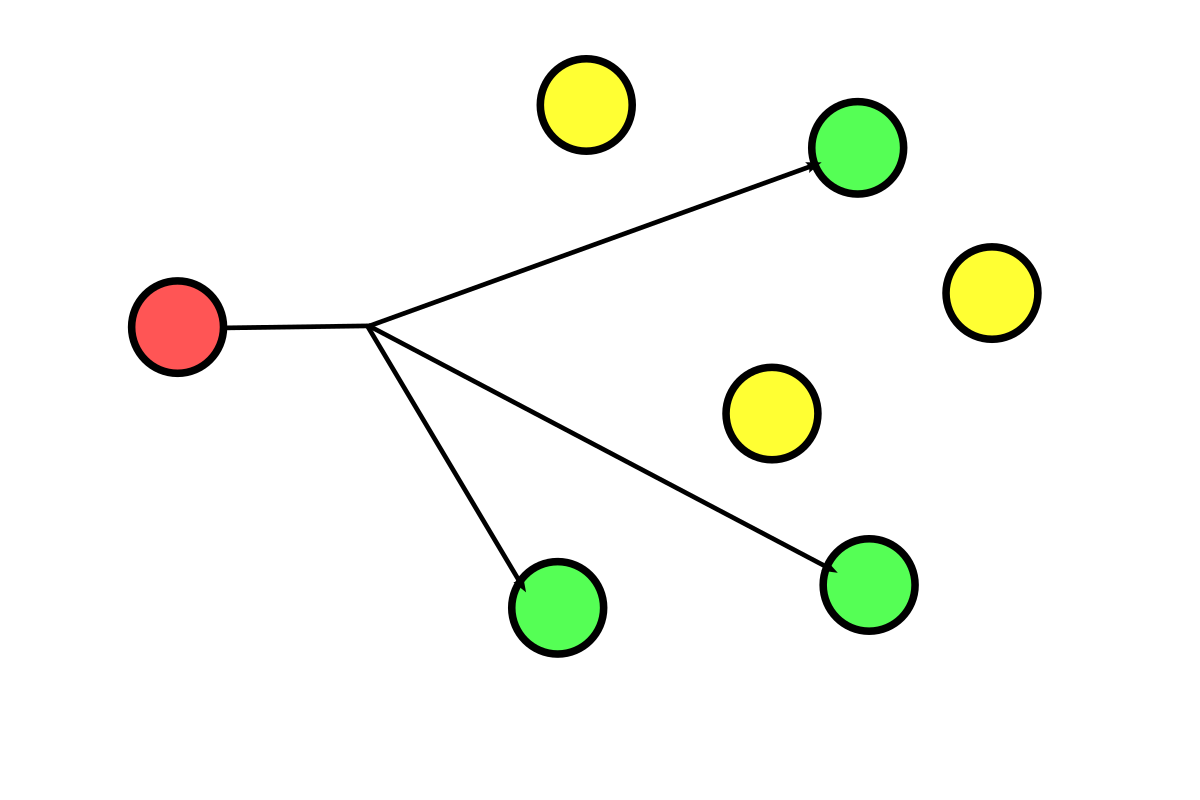
multicast ©Wikipedia
Zenoh: unicast (Router setup)
Zenoh is extremely lightweight. While it supports peer-to-peer, the most reliable setup for enterprise or university networks involves using a router. You need to let “clients” connect directly to a central router’s IP address (unicast) to post or read messages.

unicast ©Wikipedia
Connect via CycloneDDS
Alright, enough theory. Let’s look at a TL;DR table on how to set up and make the two machines communicate using Cyclone!
| Environment Variable | Machine A | Machine B |
|---|---|---|
ROS_DOMAIN_ID | 110 | 110 |
RMW_IMPLEMENTATION | rmw_cyclonedds_cpp | rmw_cyclonedds_cpp |
CYCLONEDDS_URI | file:///path/to/cyclonedds.xml | file:///path/to/cyclonedds.xml |
ROS_NETWORK_INTERFACE | enxc8a362d29cec | enp1s0 |
ROS_DOMAIN_ID: Think of this as the frequency channel on a walkie-talkie 📡. Make sure both machines share the exact same ID, or they will ignore each other.RMW_IMPLEMENTATION: The underlying RMW engine. Make sure both machines use the exact same one, down to the version!CYCLONEDDS_URI: Points to an XML file that configures CycloneDDS. Note thefile://prefix.
RemarkThe
CYCLONEDDS_URIis URI and specifically file URI scheme.
A basic cyclonedds.xml looks something like this:
<?xml version="1.0" encoding="UTF-8" ?>
<CycloneDDS xmlns="https://cdds.io/config" xmlns:xsi="http://www.w3.org/2001/XMLSchema-instance" xsi:schemaLocation="https://cdds.io/config https://raw.githubusercontent.com/eclipse-cyclonedds/cyclonedds/master/etc/cyclonedds.xsd">
<Domain id="any">
<General>
<Interfaces>
<NetworkInterface name="${ROS_NETWORK_INTERFACE}"/>
</Interfaces>
<AllowMulticast>true</AllowMulticast>
<MaxMessageSize>65500B</MaxMessageSize>
</General>
<Discovery>
<ParticipantIndex>auto</ParticipantIndex>
</Discovery>
<Tracing>
<Verbosity>info</Verbosity>
<OutputFile>stdout</OutputFile>
</Tracing>
</Domain>
</CycloneDDS>TipIt is a great trick to let the network interface be deduced by an environment variable. On Linux, type
ip -bc addrfind the exact interface where your ethernet cable is plugged in, and set that as yourROS_NETWORK_INTERFACE.
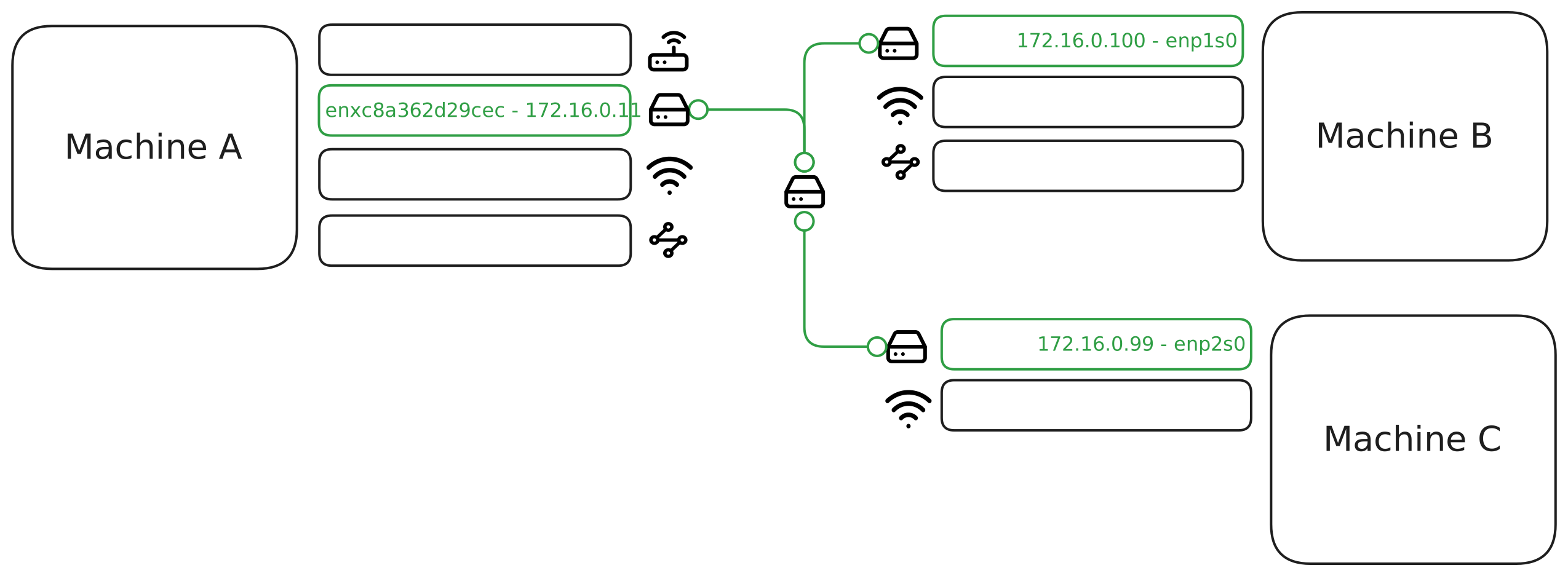
For example, my machine A has 4 network interfaces and machine B has 3. The highlighted interfaces in the diagram below indicate where the physical cables are connected. This is why I set the ${ROS_NETWORK_INTERFACE} in the <NetworkInterface /> element.

By default, CycloneDDS uses multicast discovery. This means once machine A and machine B are on the same network, they can communicate without additional configuration. The diagram below illustrates a typical 3 machines typology.
TipYou can find the XML schema for this configuration here.
Connect via Zenoh
Zenoh requires a slightly different architectural approach. The biggest difference is that you usually need to initiate a router on one machine first.
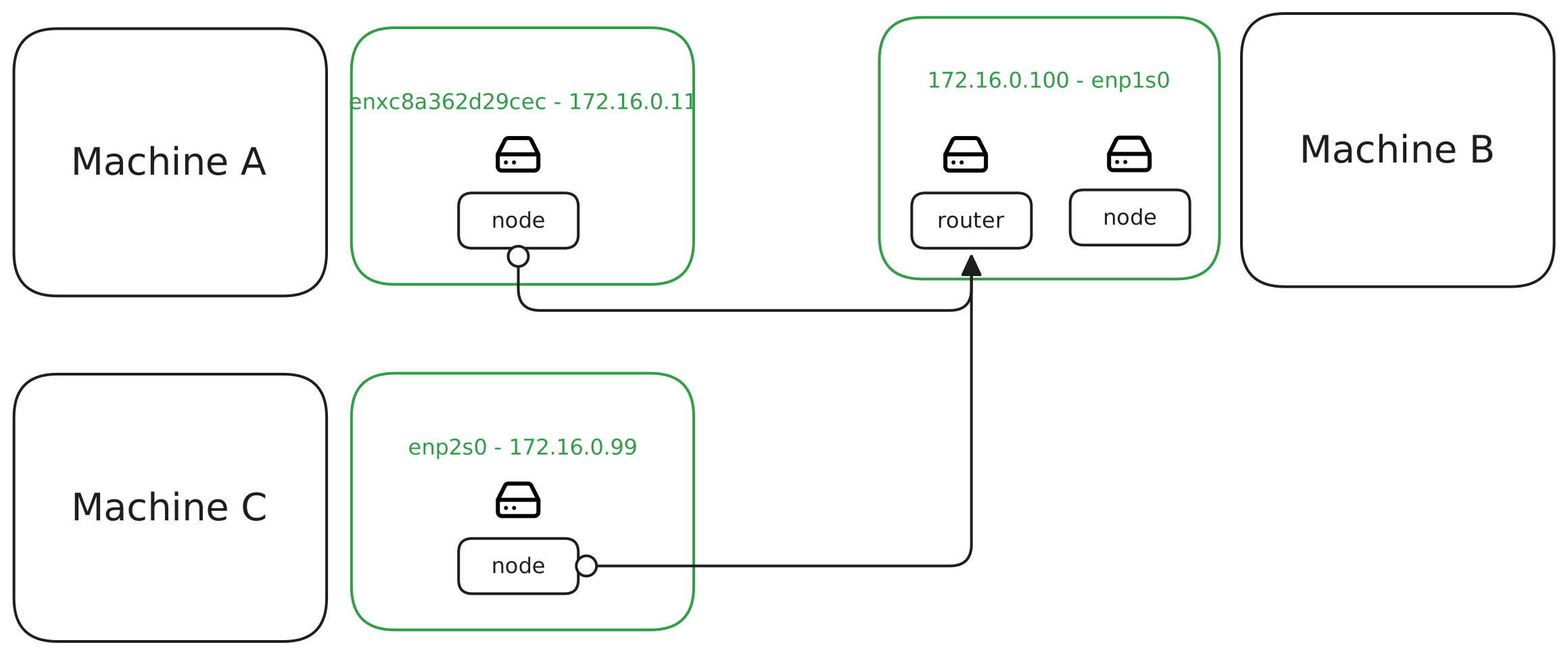
Here is the TL;DR configuration:
| Environment Variable | Machine A(client) | Machine B(router) | Machine C(client) |
|---|---|---|---|
ROS_DOMAIN_ID | 110 | 110 | 110 |
RMW_IMPLEMENTATION | rmw_zenoh_cpp | rmw_zenoh_cpp | rmw_zenoh_cpp |
ZENOH_SESSION_CONFIG_URI | path to zenoh_client.json5 | path to zenoh_client.json5 | |
| ip address | 172.16.0.11 | 172.16.0.100 | 172.16.0.99 |
RemarkThe
ZENOH_SESSION_CONFIG_URIis URI and specifically file URI scheme. You should put something likefile://host/path
For nodes acting as “client”(machine A and machine C), your zenoh_client.json5 file will look like this, pointing directly to the router (machine B) on the default port 7447:
{
"mode": "client",
"connect": {
"endpoints": ["tcp/172.16.0.100:7447"]
},
"timestamping": {
"enabled": true
}
}TipZenoh is developing rapidly, and its APIs change often. Always ensure your Zenoh versions match perfectly across nodes. Check the
zenoh_cpp_vendorversion underlying yourrmw_zenoh_cppinstallation. This link is your single source of truth for thejson5schema and API.