 Xingxin on Bug
 You don’t realize how fragile your robotics stack is… until your robot stops motion with a “UDP receive: Timeout” or “communication constraints violation” error.
Not because your policy is bad.
Not because your math is wrong.
But because your computer isn’t “real-time enough”.
After nearly 6 months running Franka Research 3 with libfranka: C++ library for Franka Robotics research robots, building kernels from source(DON’T DO THIS), testing mini PCs, testing DIFFERENT mini PCs, and debugging Ethernet jitter, I’ve converged on a setup that just works.
This post is that setup. No fluff. No distro debates! Just:
- What mini PC to buy?
- Which Linux to use?
- How to make it real-time?
- How to avoid the silent killers (network + permissions)?
TL;DR (If You Just Want the Stack)
Hardware: Mini PC(Beelink SER8 or Beelink SER9 ) OS: Ubuntu 24.04 LTS (don’t overthink it) + Omakub Realtime: Ubuntu Pro → Realtime kernel (No manual built required)
Why This Matters?
Franka is not a “normal robot SDK”. It runs a 1kHz control loop over Ethernet.
That means:
- You miss a few packets → robot halts
- Your kernel schedules late → robot halts
- Your NIC jitters → robot halts
And the worst part? Everything looks fine until it suddenly isn’t🤬. That’s why your hardware + OS choice matters more than your model architecture.
Step 1: The Mini PC
My Pick is Beelink SER series. I have set up one SER8 and one SER9 in our lab, and both work flawlessly. Why Beelink SER? Because I trust DHH as much as I trust the principles in his book Rework.
I haven’t yet found a replacement for Lightroom, so just stacked a Mac Mini on top of the Beelink, and now I don’t even have to restart Linux to dual boot! Computers have gotten small and cheap enough that you can easily have two. pic.twitter.com/vVlwmnysLf
— DHH (@dhh) July 23, 2025
He also recommend
NoteI haven’t personally tested these alternatives, so I can’t guarantee their performance for real-time robotics.
Step 2:The OS
You will be tempted to use:
- Arch (because you’re “advanced”)
- Debian (because it’s “clean”)
Don’t. I’ve tried for you already. I love Omarchy(based on ArchLinux) as much as I love Moscato D’Asti. But the ecosystem outside of Ubuntu is incredibly frustrating for robotics. I remember the pain of trying to install a community-built robotics package via pacman. Thankfully, I gave up after two days.
Use Ubuntu 24.04!! Don’t worry about whether you should stick to Ubuntu 22.04 for ROS2 compatibility. There is no need. I use ROS2 Jazzy, Humble, and franka_ros2: ROS 2 integration for Franka research robots every day. As of right now(2026-03-30), I can guarantee everything works perfectly. Fun fact: major libraries like Isaac Sim and Isaac ROS don’t even recommend 22.04 anymore. Plus, I want to use Omakub, which requires 24.04 anyway!
In short, choose Ubuntu 24.04 because:
- ROS2 loves it.
- It easily supports the Ubuntu Pro real-time kernel.
- It is fully compatible with Franka + ROS stacks.
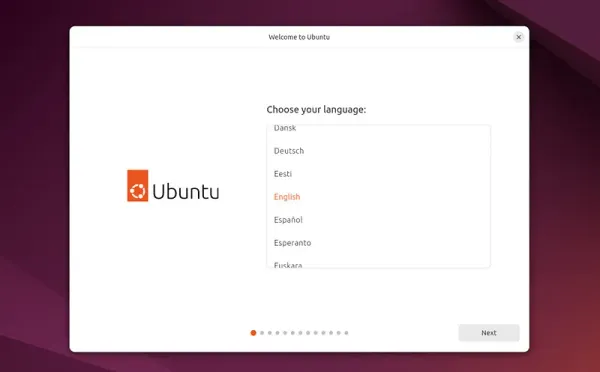
Let’s get our hands dirty and install Ubuntu 24.04 right away.
(1) Prepare a USB Stick (16GB+) (2) Navigate to the official Ubuntu Desktop installation guide and follow the steps to install Ubuntu 24.04 LTS.
TipThe official guide provides tons of screenshots to walk you through it. It’s very straightforward!
Step 3: Install Omakub
After you reboot into your new Ubuntu system, press Ctrl + Alt + T to open the terminal. Run the following command:
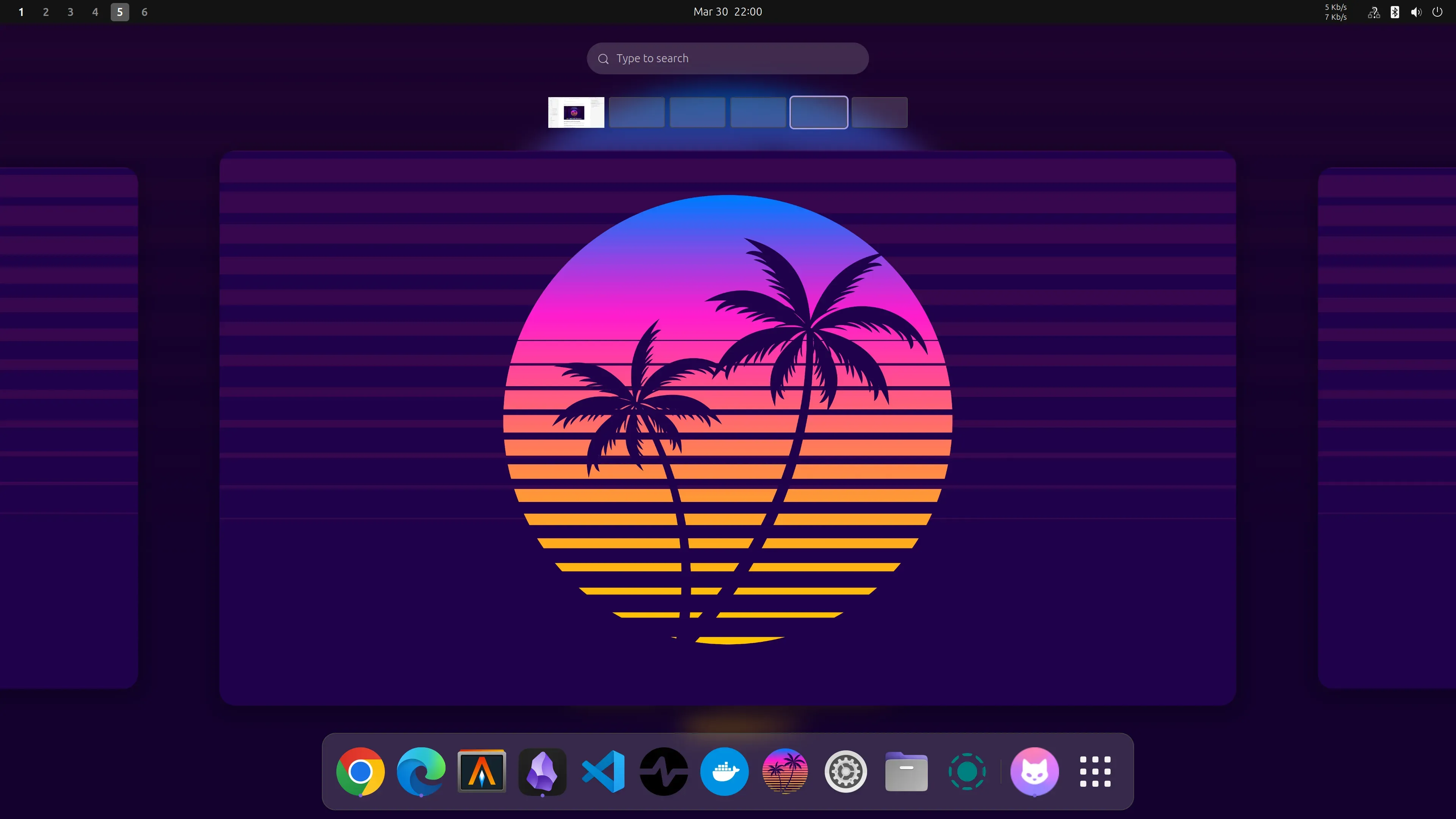
wget -qO- https://omakub.org/install | bashYou will be asked a few configuration questions. After installation, your desktop will look clean and minimal:
Tip
Step 4: Realtime Kernel
Now let’s set up the real-time kernel.
(1) Go to Ubuntu website and register for a free Ubuntu Pro account. Individual users can attach up to 5 machines to one license.
(2) Attach your subscription:
sudo pro attach(3) Make sure the Pro client is up to date:
sudo apt update && sudo apt install ubuntu-pro-client(4)Enable and install the real-time kernel automatically:
sudo pro enable realtime-kernel🔗References: How to enable Real-time Ubuntu
Step 5 Realtime Permissions
Even with the RT kernel enabled, you’re not done. You must configure user permissions. Otherwise, you have a real-time system that you don’t actually have permission to use.
(1) Add your user to the real-time group:
sudo addgroup realtime
sudo usermod -a -G realtime $(whoami)(2) Open the limits configuration file (using VS Code or your preferred editor):
# Open the file via vscode
sudo code /etc/security/limits.conf(3) Add the following lines at the end of the file:
@realtime soft rtprio 99
@realtime soft priority 99
@realtime soft memlock 102400
@realtime hard rtprio 99
@realtime hard priority 99
@realtime hard memlock 102400
🔗References:
Step 6: Network: The Silent Killer
Here are a few miscellaneous settings I’ve found absolutely critical for stabilizing the 1kHz control frequency with the Franka robot.
(1) Force “Performance” mode by default:
sudo apt install cpufrequtils
sudo systemctl disable ondemand
sudo systemctl enable cpufrequtils
sudo sh -c 'echo "GOVERNOR=performance" > /etc/default/cpufrequtils'
sudo systemctl daemon-reload && sudo systemctl restart cpufrequtils(2) Disable the firewall to prevent libfranka: UDP receive: Timeout errors:
sudo ufw disable🔗References:
Step 7: Finally, Experiment with libfranka
(1) Install uv
curl -LsSf https://astral.sh/uv/install.sh | sh(2) Copy and run the following script.
uv run --with numpy --with pylibfranka \
https://raw.githubusercontent.com/frankarobotics/libfranka/refs/heads/main/pylibfranka/examples/print_robot_state.py \
--ip 172.16.0.3