 Xingxin on Bug
 Prologue
Russ Tedrake calls ROS one of the best innovations in the robotics community. However, it is extremely difficult to set up. Meanwhile, the every-growing interest in embodied AI is attracting many practitioners with machine learning backgrounds.
There is a gap between “I want to see my algorithm work on a robot😍” and “Oh man, I really hate setting up this troublesome toolchain.🤬” I see a great opportunity that this gap could be disclosed. I want to help bridge that gap. I highly recommend trying pixi. While it is not perfect yet, it sheds light on the future of robotics development. Eventually, I hope setting up a ROS workspace becomes as simple as in uv.
# similar to `uv sync`
pixi installOverview
In this post, I will show you how to use pixi to set up a working demo where:
- A node publishes the width of a gripper.
- The gripper in RViz changes its width accordingly.
| publisher | subscriber |
|---|---|
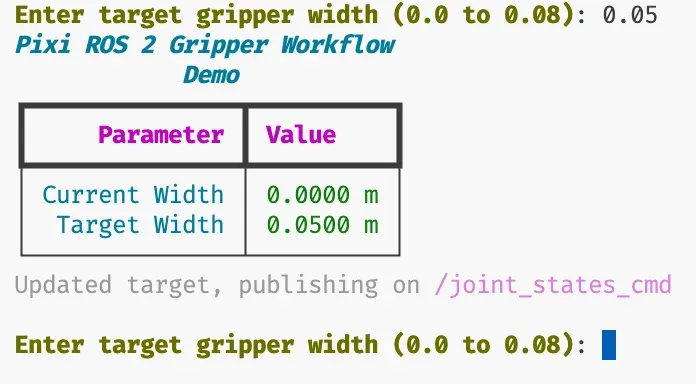 |  |
| change width in terminal | visualize gripper width |
No docker, no Dev Container, no sudo apt, and it works natively on macOS.
Remark
If you want to skip the reading and jump straight into the code, here is the source code for this demo.
The Registry
In the vanilla ROS setup, we normally use sudo apt install to get packages. So, what is the registry when using pixi?
The answer is RoboStack and conda-forge. This fundamental shift comes with clear pros and cons:
- 🚀Pros: it supports cross-platform development (including macOS and Windows).
- 🩹Cons: the supported versions are limited due to the limited effort in community.
We can initialize a project like this, where the -c specifies the channel sources for the project:
pixi init pixi_ros2_gripper_workflow_demo -c robostack-humble -c conda-forgeWith that, we can add the packages we want:
pixi add ros-humble-desktopYou can visit the website to check if a package is available, or use the command line.

pixi search ros-humble-desktopOutput:
Using channels: robostack-humble, conda-forge

ros-humble-desktop-0.10.0-np126py311h2a51a2c_13 (+ 3 builds)
------------------------------------------------------------

Name                ros-humble-desktop
Version             0.10.0
...
Run ROS CLI
After you add ros-humble-desktop, ROS is installed entirely within your local project folder under the .pixi directory.
.
├── .git
├── .gitattributes
├── .gitignore
├── .pixi    <-- installed here
│   ├── .condapackageignore
│   ├── .gitignore
│   ├── envs
│   └── task-cache-v0
├── pixi.lock
├── pixi.toml
└── src
There are two ways to run a ros2 executable in this environment:
pixi run ros2 ...pixi shelland then runros2 ...
The first method is similar to uv run python ... while the second is analogous to running source .venv/activate && python ... . I personally prefer the first method. If I run:
pixi run ros2 topic listI will see the topics listed out.
/parameter_events
/rosout
Build a Package(Node)
To add a ROS2 node, you can use
pixi run ros2 pkg create --build-type ament_python --destination-directory src --node-name pixi_ros2_gripper_workflow_demo pixi_ros2_gripper_workflow_demoThis creates the package structure inside your workspace’s src folder.
.
├── .git
├── .gitattributes
├── .gitignore
├── .pixi
├── pixi.lock
├── pixi.toml
└── src
    └── pixi_ros2_gripper_workflow_demo
        ├── package.xml
        ├── pixi_ros2_gripper_workflow_demo
        ├── resource
        ├── setup.cfg
        ├── setup.py
        └── test
Then, build the package with:
pixi run colcon build --symlink-installTask as Shortcuts
Pixi supports tasks, which act as wrappers for complicated commands. For example, adding this to your pixi.toml:
[tasks]
build = { cmd = "colcon build --symlink-install", inputs = ["src"] }This allows you to just type pixi run build to get the same result as before. The inputs attribute enables caching to speed up future builds.
Source the Package
In standard ROS, you normally run source install/setup.bash to use a newly built package. Pixi provides a great shortcut for this. Add the following to your pixi.toml:
[activation]
scripts = ["install/setup.bash"]Now, every time you use pixi run, it automatically invokes the activation script first. It is incredibly handy.
Another trick I enjoy is setting environment variables directly via a script. You can update your pixi.toml like this:
[activation]
scripts = ["scripts/ros_env.bash", "install/setup.bash"]And then create a ros_env.bash file in a scripts folder:
export ROS_DOMAIN_ID=13
export ROS_LOCALHOST_ONLY=1
export RMW_IMPLEMENTATION=rmw_cyclonedds_cpp Epilogue
That’s it! In this post, I skipped the deep nuances of ROS 2 to focus entirely on providing minimal actionable knowledge for the integration and pipeline. Once you understand this toolchain, the setup process is super fast.